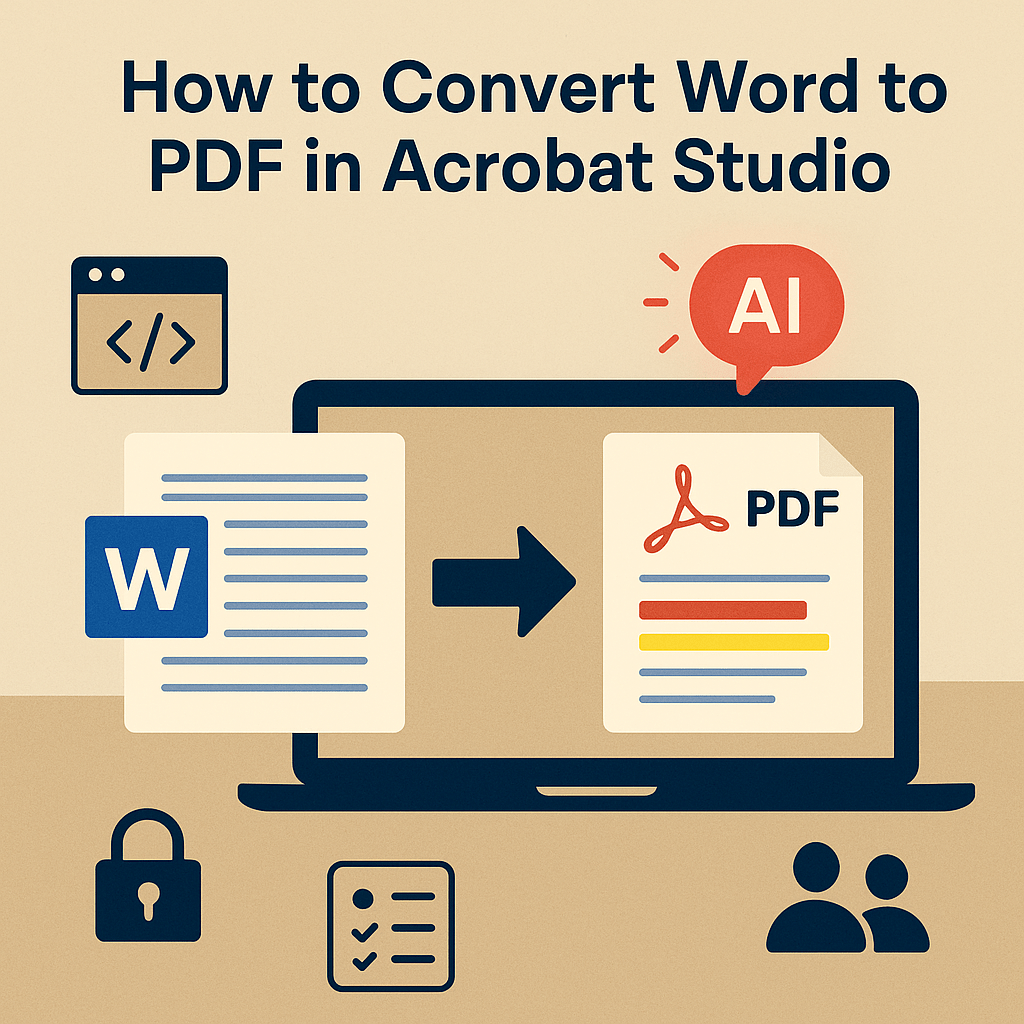
Microsoft Word is one of the most widely used tools for creating reports, proposals, contracts, and essays. But when it comes to sharing documents professionally, the PDF format is the gold standard—it ensures your layout, fonts, and formatting remain consistent across devices. With Adobe Acrobat Studio, converting Word documents to PDF is quick, precise, and enhanced with AI-powered options.
In this tutorial, we’ll walk step by step through how to convert Word files to PDF in Acrobat Studio.
Why Convert Word to PDF?
- Preserve formatting: Fonts, margins, and layouts remain intact.
- Universal compatibility: PDFs open the same way on Windows, Mac, iPad, or mobile.
- Security: Add passwords, redaction, or restricted permissions.
- Professionalism: Share final documents in a polished, uneditable format.
- AI enhancements: Acrobat Studio can summarize, simplify, or extract key details after conversion.
Step-by-Step: Convert Word to PDF in Acrobat Studio
1. Open Acrobat Studio
Launch Adobe Acrobat Studio and log in with your Adobe ID.
2. Choose the “Create PDF” Tool
- Go to File > Create PDF.
- Select From File.
3. Upload Your Word Document
- Locate your
.docor.docxfile. - Click Open, and Acrobat Studio will automatically begin converting it into a PDF.
4. Review and Enhance Your PDF
Once converted, you can:
- Check formatting for accuracy.
- Add headers, footers, or watermarks.
- Use AI Summarization to create an executive summary.
- Ensure accessibility with built-in compliance tools.
5. Save and Share
- Save your new PDF locally or to cloud storage (Adobe Cloud, OneDrive, Dropbox, Google Drive).
- Share via PDF Spaces for team collaboration.
Pro Tips for Word-to-PDF Conversion
- Batch conversion: Use Acrobat Studio to convert multiple Word files at once.
- Add protection: Apply a password or restrict editing if you’re sharing sensitive documents.
- Optimize file size: Compress images within the PDF to make it easier to send.
- Leverage AI: Ask the assistant to “Highlight all key deadlines in this PDF” once converted.
Key Takeaway
Converting Word documents to PDF in Acrobat Studio is straightforward and professional. You not only get an accurate, secure PDF but also the advantage of AI tools that make your document smarter and easier to work with.
Try Acrobat Studio Free
Turn your Word files into polished PDFs today. Start your free trial of Adobe Acrobat Studio and unlock smarter document workflows.




 Acrobat Studio Pro