
In today’s digital-first world, contracts, agreements, and approvals often need to be signed electronically. Instead of printing, signing, and scanning documents, Adobe Acrobat Studio lets you add digital signatures directly to PDFs—saving time while ensuring security and compliance.
In this tutorial, we’ll walk through how to add digital signatures step by step.
Why Use Digital Signatures in PDFs?
- Speed – Sign contracts and agreements instantly, no printing required.
- Security – Digital signatures include encryption and authentication.
- Legality – Digital signatures are legally binding in most countries.
- Convenience – Works across devices: desktop, tablet, or mobile.
- Collaboration – Combine with PDF Spaces so multiple stakeholders can sign in one shared document.
Step-by-Step: Adding Digital Signatures in Acrobat Studio
1. Open Your PDF in Acrobat Studio
- Launch Adobe Acrobat Studio and upload the document that requires a signature.
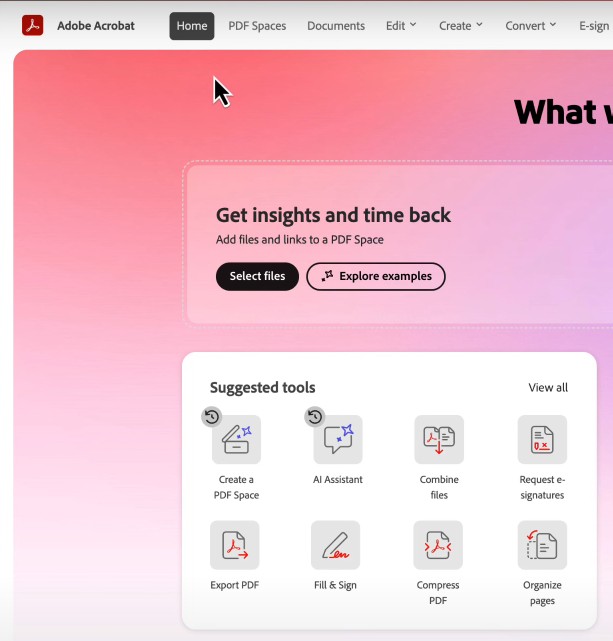
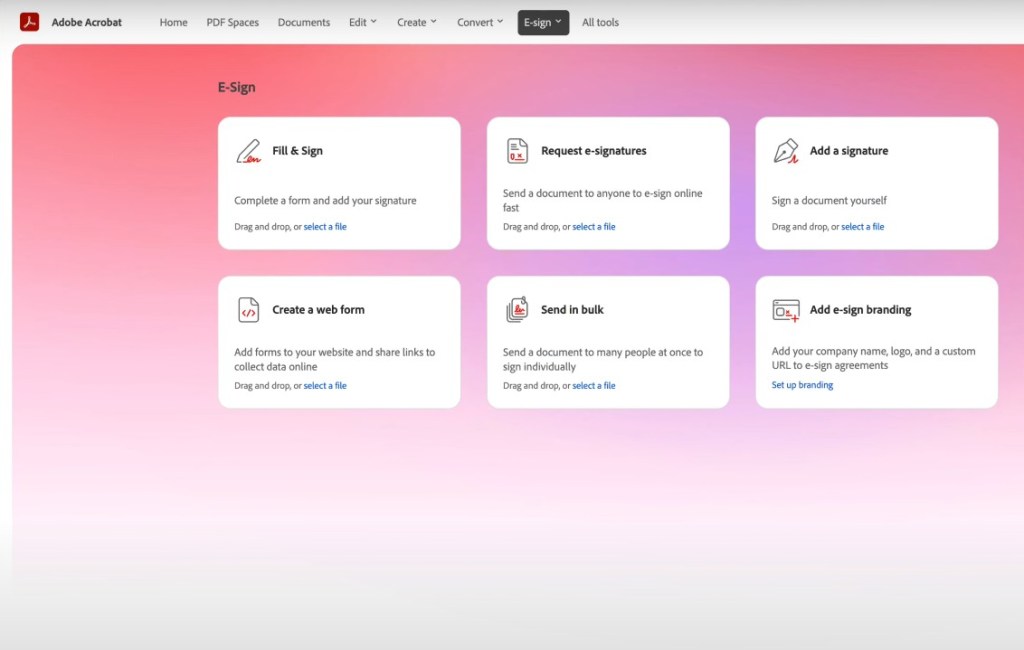
2. Access the Fill & Sign Tool
- Navigate to Tools > Fill & Sign.
- A toolbar will appear with options for adding text, checkmarks, and signatures.
3. Choose “Add Signature”
- Click the Sign icon in the Fill & Sign toolbar.
- You’ll be given three options:
- Type: Enter your name, and Acrobat Studio will generate a signature style.
- Draw: Use your mouse, trackpad, or touchscreen to create a handwritten signature.
- Image: Upload a scanned signature.
4. Place Your Signature
- Once created, click where you want the signature to appear in the PDF.
- Resize or move it as needed.
5. Use a Digital ID for Advanced Security (Optional)
For legal or compliance-heavy workflows, add a digital ID certificate:
- Go to Certificates > Digitally Sign.
- Select your digital ID (from Adobe or a third-party provider).
- Acrobat Studio will apply an encrypted, verifiable signature.
6. Save and Share
- Save the signed PDF locally or in cloud storage.
- Share via PDF Spaces for others to review and countersign.
Pro Tips for Digital Signatures
- Use AI for workflow automation: Ask the assistant to “Highlight unsigned sections in this PDF.”
- Multiple signers: Use PDF Spaces to streamline approvals with different stakeholders.
- Audit trails: Acrobat Studio stores metadata with timestamps to prove authenticity.
- Accessibility: Combine signatures with Acrobat Studio’s accessibility tools for compliance.
Key Takeaway
Adding digital signatures in Acrobat Studio is simple, secure, and legally compliant. Whether you’re signing contracts, NDAs, or purchase agreements, Acrobat Studio ensures your workflow stays fast and professional.
Try Acrobat Studio Free
Start signing smarter today. Begin your free trial of Adobe Acrobat Studio and add legally binding digital signatures to your documents in minutes.




 Acrobat Studio Pro