
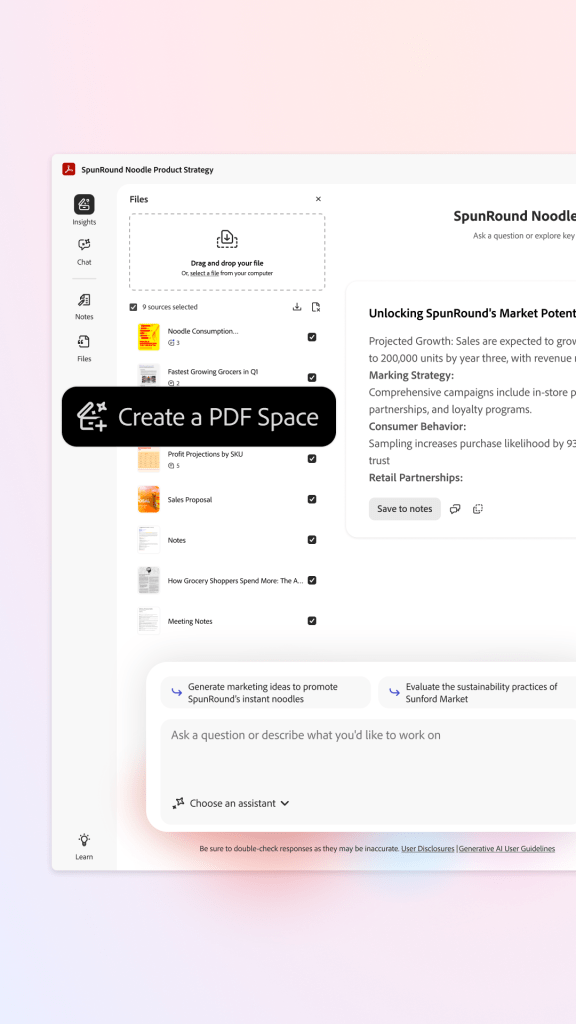
Collaboration around documents is one of the biggest challenges in any workplace. Too often, multiple versions of the same PDF circulate by email, leading to confusion, lost comments, and missed deadlines. Adobe Acrobat Studio solves this problem with PDF Spaces—a shared, AI-powered environment where teams can review, annotate, and approve documents together.
In this tutorial, we’ll walk through exactly how to create a PDF Space in Acrobat Studio and start collaborating effectively.
What Are PDF Spaces?
PDF Spaces are collaborative workspaces inside Acrobat Studio where:
- Multiple users can view and annotate the same PDF.
- All comments and edits are tracked in real time.
- AI assistance highlights deadlines, action items, or key details.
- Teams avoid “version chaos” by working on one single source of truth.
Step-by-Step: Creating a PDF Space in Acrobat Studio
1. Open Acrobat Studio
Launch Adobe Acrobat Studio on your computer or tablet and sign in with your Adobe ID.
2. Upload Your PDF
- Go to File > New PDF Space.
- Select the document you want to upload from your local drive or cloud storage (Creative Cloud, OneDrive, Dropbox, Google Drive).
3. Name Your PDF Space
- Give the Space a clear, descriptive name.
- Example: “Q1 Marketing Report Review” or “Policy Draft for Approval”.
4. Invite Collaborators
- Click Invite and enter the email addresses of your teammates.
- Assign roles if needed (Viewer, Commenter, or Editor).
5. Set Permissions
- Control who can edit, comment, or only view.
- Add expiration dates if the Space should only be available for a certain time.
6. Start Collaborating
Once created, your collaborators will receive an invitation to join. Inside the Space, you can:
- Highlight important sections.
- Add sticky-note comments.
- Use AI Summarization to create quick overviews for the team.
- Track deadlines and decisions directly in the PDF.
Pro Tips for Using PDF Spaces
- Use AI Prompts: Ask Acrobat Studio to “Highlight all dates” or “Summarize key obligations” to make reviews faster.
- Version-Free Collaboration: Stop sending attachments—everyone sees the same document in the Space.
- Notifications: Enable alerts so you know when someone comments or approves changes.
Key Takeaway
Creating a PDF Space in Acrobat Studio is a simple yet powerful way to collaborate. Instead of wasting time with scattered emails and multiple versions, you and your team can focus on making better decisions—together, in real time.
Try Acrobat Studio Free
Ready to experience PDF Spaces for yourself? Start your free trial of Adobe Acrobat Studio and discover how collaboration can be smarter, faster, and easier.




 Acrobat Studio Pro