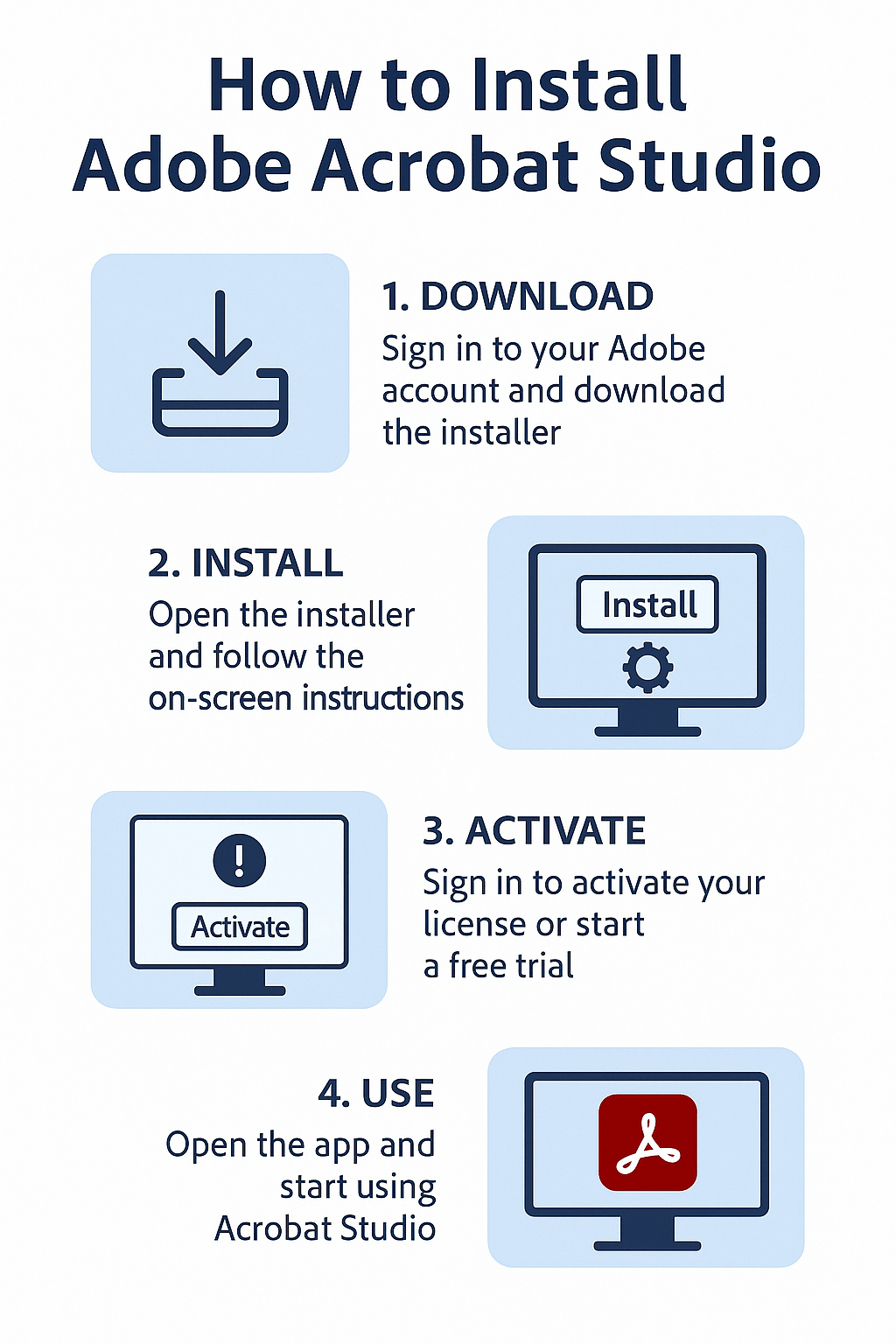
Adobe Acrobat Studio is Adobe’s new AI-powered PDF solution designed for professionals and teams who need more than just document viewing. It combines classic PDF editing with AI assistance, collaboration tools, and cloud integration. But before you can start using Acrobat Studio, you’ll need to install it properly. This guide will walk you step-by-step through the installation process on both Windows and macOS.
1. Check System Requirements
Before downloading, make sure your device meets the minimum system requirements.
- Operating System:
- Windows 10 (64-bit) or later
- macOS Monterey (12.0) or later
- Processor: Intel, AMD, or Apple Silicon (M1/M2)
- RAM: At least 8 GB recommended
- Storage: 2 GB free space for installation
- Internet: Required for activation and updates
💡 Tip: For best performance, keep your OS updated to the latest version.
2. Sign In to Your Adobe Account
- Visit Adobe.com.
- Click Sign In (top-right corner).
- Use your Adobe ID and password, or create a new account if you don’t already have one.
💡 You need an Adobe account to download Acrobat Studio and activate your subscription or trial.
3. Download Acrobat Studio
- Once signed in, go to the Creative Cloud dashboard.
- Search for Acrobat Studio in the app list.
- Click Download (for Windows or macOS).
- Save the installer file to your device.
4. Install on Windows
- Locate the downloaded AcrobatStudio_Setup.exe file.
- Double-click to launch the installer.
- Accept the license agreement.
- Choose your installation folder (default recommended).
- Click Install and wait for the process to complete.
- Launch Acrobat Studio from the Start Menu.
5. Install on macOS
- Locate the AcrobatStudio_Installer.dmg file.
- Double-click to open the installer.
- Drag the Acrobat Studio icon into the Applications folder.
- Open Launchpad or Finder > Applications and click Acrobat Studio.
- Grant necessary permissions if macOS prompts you.
6. Activate Your License
- If you purchased a plan: Sign in with your Adobe ID to unlock full features.
- If you’re on a free trial: The 7-day trial activates automatically after sign-in.
- For Teams: Admins may assign you a license that appears as soon as you log in.
7. Update to the Latest Version
- Open Creative Cloud Desktop App.
- Go to Updates and check if Acrobat Studio has a newer version.
- Click Update to ensure you’re running the latest release.
Conclusion
Installing Adobe Acrobat Studio is simple whether you’re on Windows or macOS. Once installed, you’ll unlock AI-powered PDF editing, collaboration tools, and advanced security features. If you’re still exploring, start with the 7-day free trial to test everything Acrobat Studio has to offer.
Affiliate CTA
👉 Ready to try it yourself? Download Adobe Acrobat Studio with a free 7-day trial and experience the future of PDF editing today.




 Acrobat Studio Pro