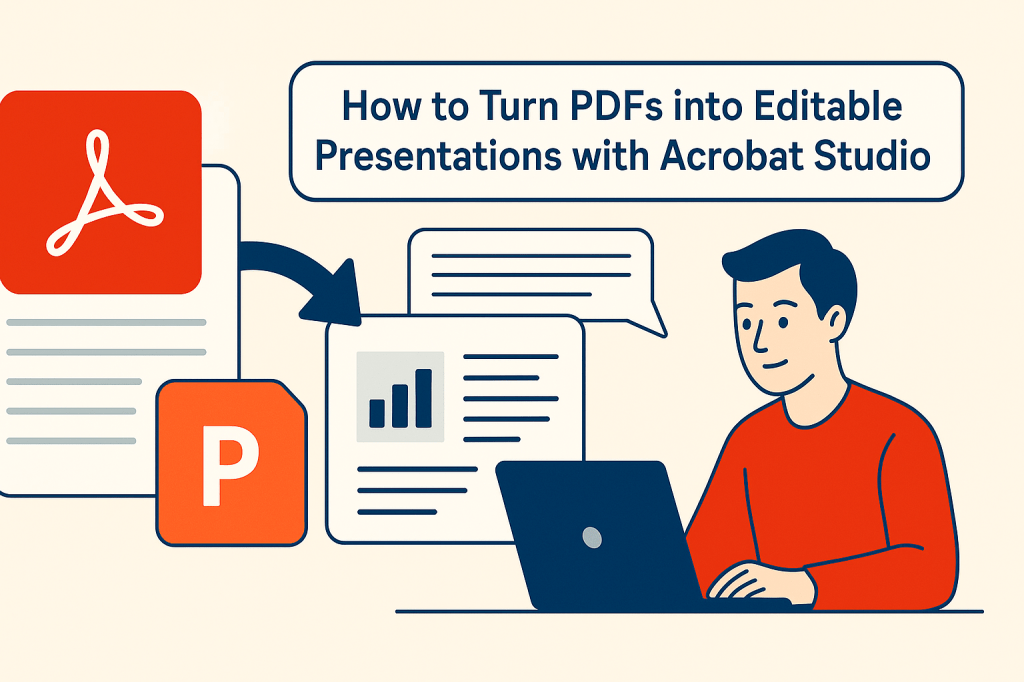
Turning a long PDF report into a presentation used to mean hours of copy-pasting text and reformatting slides. With Adobe Acrobat Studio, that process is now automated. Its AI-powered tools can transform PDFs into editable PowerPoint presentations in just a few clicks.
Here’s how you can do it.
📌 Step 1: Open Your PDF
Upload the file into Acrobat Studio from your device or open it directly from Adobe Cloud, Dropbox, or Google Drive.
📌 Step 2: Select “Convert PDF”
In the Tools menu, choose Convert PDF. From the list of export options, select Microsoft PowerPoint (.pptx).
📌 Step 3: Let AI Do the Work
Acrobat Studio doesn’t just copy text. It uses AI to:
- Divide content into slide-friendly chunks.
- Detect and apply headings as slide titles.
- Preserve tables, charts, and images.
- Generate editable speaker notes for context.
📌 Step 4: Edit in PowerPoint
Open your new PowerPoint file and refine it:
- Adjust layouts and design themes.
- Add your brand colors and logos.
- Edit AI-generated speaker notes to fit your style.
✅ Why This Matters
- Students can turn lecture notes into study slides.
- Businesses can transform reports into presentations for clients.
- Nonprofits can convert donor reports into impactful pitch decks.
✅ Final Thoughts
What once took hours now takes minutes. Acrobat Studio turns PDFs into presentations that are editable, professional, and ready to share.
🔗 Try Acrobat Studio Today
Want to test it yourself? Start using Adobe Acrobat Studio here and turn documents into presentations instantly.




 Acrobat Studio Pro